Export your trade history before you close a crypto exchange account
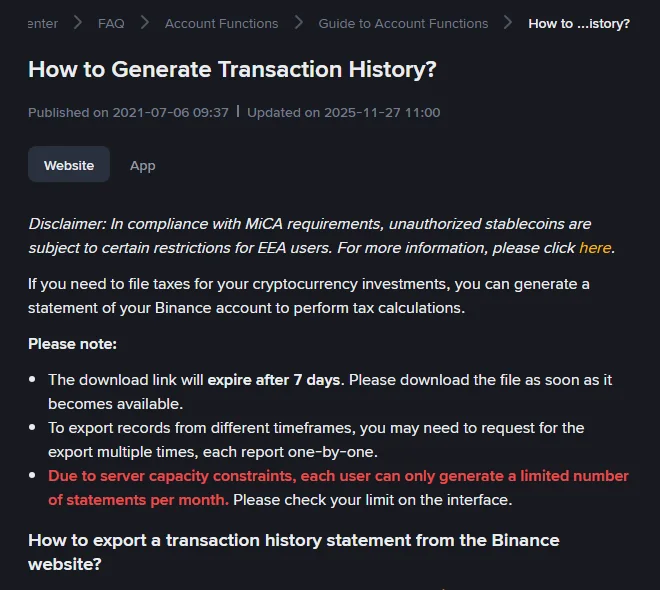
An export only works while you can still log in; once an account is closed, or a deactivation notice has taken effect, there is no login to generate a statement from. Kraken says in writing that support cannot run exports for you, and Binance's deactivation page directs anyone who can no longer log in to Customer Service without saying whether a file can be provided. The export lives in a different place on each exchange; Binance and Bitget cap the number per month and expire the link after 7 days, Kraken publishes a processing time instead, and Coinbase neither.
Generating the export is not enough: download the files and open them to check they are complete, all before you press anything that closes or disables the account.
| Exchange | Where the export is | What it covers | Limits the page states | Link expiry |
|---|---|---|---|---|
| Binance | [Assets], [Asset History], export icon, [Export Transaction Records]; spot trades separately under [Orders], [Spot Order], [Trade History] | Transaction records across accounts and coins; spot trade history as CSV | A monthly quota shown “in the fineprint”, 15 to 40 transaction statements; 5 spot trade statements per month; one year per spot file | 7 days |
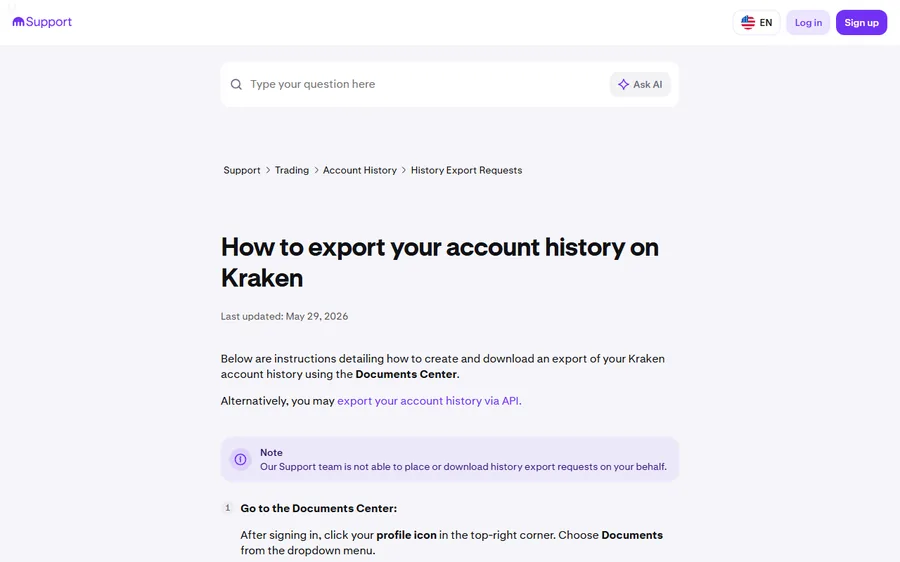
| Kraken | Profile icon, [Documents], [Create Export] | Account Statement, Trades, Ledgers (deposits, withdrawals, fees, balance changes), Balances snapshot; CSV or PDF | “A few minutes to up to a week” to process; order history cannot be exported directly; no email when ready | Not stated |
| Coinbase | Profile icon, [Settings], [Accounts], [Statements]; app: Account & settings, Statements | Monthly statements in HTML, PDF or CSV; custom statements by asset, transaction type and date | Available “from the time the account was created” | Not stated |
| Bitget | Profile icon, [Accounts], the account type, the transaction history icon, [Download]; order history also from the data export page | Transaction history (deposits, withdrawals, transfers, fees, balance changes) for Spot, Margin, Futures and Onchain; order history; account statements | Website only, not the app; up to 100 exports a month, each covering at most 2 years | 7 days |
Which files to download, and in what order
Start with the file that records balance changes rather than orders. On Kraken that is Ledgers, which “includes deposits, withdrawals, fees, and other balance changes over time”. On Bitget it is the transaction history, which shows “deposits, withdrawals, transfers, trading fees, and other balance changes”. On Binance it is the transaction records export, with the spot trade CSV as the second file. A ledger reconciles to the balance you can see on screen today; a list of orders does not, because cancelled and partially filled orders are in it too.
Then the deposits and withdrawals with their transaction IDs, the set a bank, a tax office or a source-of-funds review may ask for. Binance’s identity and compliance pages ask for the same kind of record when a review opens, as described in Binance asks for source of funds.
Last, the trades themselves, split by year if the exchange insists. Binance’s spot statement covers “up to a full year’s trading history from the selected date”, so an account that has traded since 2021 needs one request per year and a quota of five per month.
Binance: how to export transaction history and spot trade history
The transaction records export is under [Assets] and [Asset History] on the website, behind the export icon. For a range inside the last six months you pick from the ranges offered, choose the account, sub-account and coin, and click [Generate]; for anything older you click [Customize] and set the dates. Binance’s page says each user “can only generate a limited number of statements per month (15 - 40)” and that the quota is shown in the pop-up, so look before spending it on small ranges. The status column shows the time remaining, an SMS or email arrives when the file is ready, and the page warns that the message can be delayed or blocked, in which case “wait and check back in one to two hours”. The download link “will only be stored for 7 days”.
Spot trades are a separate file from a separate place: the [Profile] icon, [Orders], [Spot Order], then [Trade History] and [Export Trade History]. Select [All Time], adjust the calendar to the year you want (dates after 13 July 2017 only), and click [Generate]. This export has its own cap of five statements per month and its own seven-day link; the result is a CSV. The app has an equivalent under the Spot wallet’s history icon.
Kraken: one place, four file types, up to a week
Kraken puts everything in the Documents Center: profile icon, [Documents], then [Create Export] in the Exports section. The export types are Account Statement, Trades, Ledgers and Balances; Trades and Ledgers need a start and end date, Balances needs a single date, and all can be filtered by asset or pair and delivered as CSV or PDF. The page notes that order history cannot be exported and suggests reconstructing it from the Trades file.
The point to plan around is the processing time: “Export requests can take anywhere from a few minutes to up to a week to process”, and “we currently do not send email notifications when your export is ready”, so the Documents page has to be checked by hand. An account closure requested on the same day as the export can outrun it. Kraken also offers the export through its API for people who already use it.
Coinbase: statements by month or by custom range
Coinbase keeps statements under the profile icon, [Settings], [Accounts], [Statements]; in the app it is the main menu, Account & settings, then Statements. Each past month has a ready-made statement that can be downloaded as HTML, PDF or CSV, and a custom statement can be built by choosing the asset, the transaction type and the dates, then [Generate]. The page says statements are “available from the time the account was created”, so there is no cut-off year to work around. The same page offers annual reports and tax reports for some regions; those are separate from the transaction statements.
Bitget: website only, two years per file
Bitget’s page starts with the limit that matters most when you are about to leave: “The export feature is only available on the Bitget website and is not supported on the Bitget app.” Transaction history is exported per account type, Spot, Margin, Futures or Onchain: profile icon, [Accounts], the account type, the transaction history icon on the right, then [Download] on the transactions tab. Choose the time range and the pair, click [Generate], and wait for the notification. “The download link is valid for 7 days.”
Two limits shape a full export. Each request covers “a maximum date range of 2 years”, and a longer range is cut to two years automatically, so an older account needs several requests. And “users can export data up to 100 times per month”. Order history, a separate file, comes from the data export page or the order page; within the last six months it is limited to 10,000 records per request.
Bitget also offers two PDF account statements. The asset overview, on the data export page, gives a snapshot for one chosen date and only covers dates from 18 July 2025. The account ownership statement, from the account page, shows the UID, legal name, KYC details, residence and account creation date, which is the kind of document an executor or a bank may ask for to show whose account it was. Bitget notes that it “contains personal and sensitive information”.
Export link expired, still processing, or account already closed
On Binance, the seven-day link is the risk: miss the notification and the download is gone, with that month’s quota spent and the request to make again. Generate when you can download the same day.
Kraken’s week is the second. A closure request submitted before the export finishes may fail for other reasons, since Kraken requires all funds withdrawn first, but the export is the thing you cannot redo afterwards. Wait for the download icon.
The third is a closure that was not yours. An account closed by the exchange after a deactivation notice still has a withdrawal window, as described in the exchange closed your account, and Binance’s page answers “I want to extract my transaction history/account statement, what should I do?” with “You will need to log in to your account to extract one”; if you cannot, it says to contact Customer Service. Kraken’s export page adds that its support team “is not able to place or download history export requests on your behalf”. Kraken’s closure page describes withdrawing the remaining balance but says nothing about exports. On neither is there a promise that the files will be available later, so the export belongs inside the withdrawal window, before the balance.
If your Binance account is already closed, there is one more door to try. A Binance support page titled “Closed Account Service” comes up in a search for that name. In October 2026 it showed only an error page, so what it offers is unclear. Try it, and if it does not help, contact Binance Customer Service with the registered email and the period you need.
Keep the files where the account cannot take them
The same history is what a tax return, an inheritance claim or a dispute with a bank may need later. A statement left in a download folder is one laptop failure from gone. Keep the CSVs with the records you would keep for a bank account: the year’s tax papers, or wherever your executor would look. Once the account is closed, getting them again is uncertain at best. If you are closing because you are moving to a different exchange, keep the old files anyway; the new account’s history starts at zero and its deposits will one day need the matching withdrawal records from the old one.
Where each step comes from · checked October 2026
Binance’s menu path, the 15 to 40 monthly quota, the SMS and email notification and the seven-day link are from How to Generate Transaction History? (updated 27 November 2025); the spot export, its five-statement cap and the 13 July 2017 start date are from “How to Download Spot Trading Transaction History Statement?” (updated 28 January 2026); the login requirement for statements is Q18 of “Why Did I Receive an Account Deactivation Notice?” (updated 13 May 2026). Kraken’s Documents Center steps, file types, processing time and the note about support are from How to export your account history on Kraken (updated 29 May 2026). Coinbase’s paths and formats are from “Leverage your account statements and your gain/loss report”, which shows no update date. Bitget’s menu path, the 100-a-month and two-year limits, the seven-day link and the account statements are from How to Export Your Account Data on Bitget? (dated 14 March 2025, read in October 2026). Menu names move; if a button is not where this page says, search the exchange’s help centre for “export” or “statement”.