Binance asks for a passkey you do not have: how to log in
Press Cancel on the passkey prompt and choose My Passkeys Are Not Available. The reset that follows asks for your other verification methods, then holds withdrawals for up to 48 hours. If you turned on Must verify using passkey, the reset is the only way back, so turn it off before you change phones.
How to log in when your passkey is on another device
Binance’s 2FA reset page gives the exact sequence. The two choices in step 2, [Cancel] and [My Passkeys Are Not Available], look like giving up, which is why they are easy to skip.
- On the website, click [Log In] and enter your email or phone number.
- When the passkey pop-up appears, click [Cancel], then choose [My Passkeys Are Not Available].
- Enter your password and click [Next].
- On the Security Verification Requirements page, pick the method that is unavailable, the passkey, and click [Security verification unavailable?] on the pop-up.
- On the Reset Security Verification page, tick the passkey (and any other method you have also lost) and click [Confirm Reset].
- Read the warning: withdrawals, P2P selling, internal transfers and payment services are disabled for up to 48 hours after a reset. Click [Confirm].
- Verify with the methods you still have, such as the email code or an authenticator app.
- If asked, set a new phone number or email and verify it.
- Wait for the result. A reset that goes to review “may take up to 24 hours”.
What happens next: the reset succeeds and you log in with your remaining methods; [Application Denied], which means a method you ticked as lost was actually still available, so check and try again; or [Under Review], which means waiting for the email.
The 48-hour hold is the price of the reset and cannot be shortened; it is one of the timed holds that follow security changes, all set out in withdrawals suspended or account restricted.
Why Binance asks for a passkey this device does not have
A passkey is a credential stored on a device or in a password manager, unlocked with your face, fingerprint or PIN. Binance supports it as a second factor: once added, “you can use it for Two-factor Authentication (2FA) on all your linked devices”. The catch is in “linked”. A passkey saved to one phone’s keychain is not on the next phone unless the keychain syncs there, and a passkey saved in a browser profile is only in that browser profile. So the prompt “Verify with your passkey” on a device that has no passkey is not an error; it is asking for something that lives elsewhere.
A passkey can live in five places, and only two of them sync to other devices (where a passkey can live). Typical reasons none of them is reachable from where you are logging in:
- A new phone with a new Apple ID or Google account, or a phone restored without the keychain.
- Logging in from a computer where the passkey was never saved.
- A password-manager browser extension that holds the passkey but does not offer it on the Binance login page. Bitwarden users reported in January 2026 that its browser extension did not list a saved Binance passkey; the thread is on Bitwarden’s community forum.
- A security key left at home.
- The app reinstalled, or the system passkey settings changed.
None of these costs you the account, only the quick way in.
Add a passkey on the new phone and delete the old one
Go to [Account], then [Security], then [Manage] next to [Passkeys], and do three things.
- Add a passkey on the device you now use, in a place that syncs: iCloud Keychain or Google Password Manager.
- Delete the passkeys that belong to devices you no longer have. A stale passkey on a phone you sold is a credential you cannot see.
- Keep a second method alive: an authenticator app, and email. The reset only works because something other than the passkey could still verify you.
If you want a passkey that survives a lost phone, store it in a synced manager and also on a hardware key kept somewhere else. Two copies in two places means a lost phone does not have to end in a reset.
Where a passkey can live, and which copies survive a lost phone
Binance’s passkey page lists the places a passkey can be stored, and they behave differently when a phone is lost.
| Stored in | Reaches other devices? | What Binance’s page says |
|---|---|---|
| iCloud Keychain (iPhone, iPad, Mac) | Yes, every Apple device signed in to the same Apple ID | The passkey “will be synced across all your Apple devices using the same Apple ID” |
| Google Password Manager (Android, Chrome) | Yes, wherever that Google account is signed in | Recommended on the website “because it will be automatically synced with your Google account” |
| The Chrome profile on one computer | No | “The passkey created will only be saved on this device” |
| A USB or NFC security key | Only where the key is | Added under [Other Options], then [Security key]; removing it later requires the key itself |
| Another device scanned by QR code | Only on that device | Offered as [iPhone, iPad, or Android device] during setup |
The first two are the ones that let a new phone log in without a reset, provided the new phone is signed in to the same Apple ID or Google account. A passkey saved to a Chrome profile or a single phone is the kind that ends in a reset. Whichever you use, Binance’s page notes that removing a passkey on the website in Chrome has to be verified with that passkey, while in the app the [Delete] icon accepts the passkey or another 2FA method; for a key you no longer have, the app is the way to remove it.
Must verify using passkey: turn it off before changing phones
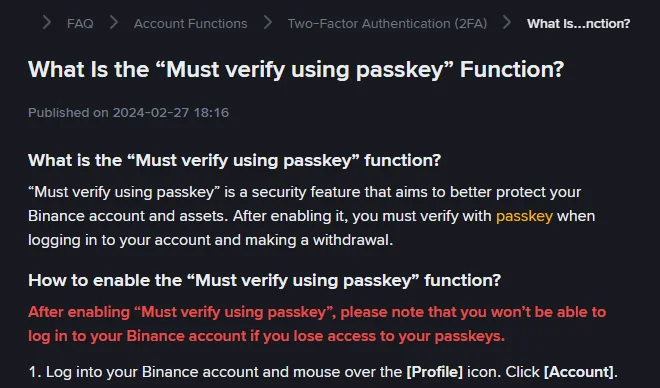
Binance has a toggle called [Must verify using passkey for important scenarios], under the passkey management page. Its own description: “After enabling ‘Must verify using passkey’, please note that you won’t be able to log in to your Binance account if you lose access to your passkeys.” The page tells you to disable it before you:
- change to a different mobile device;
- log in to a new iCloud account;
- change passkey settings in the device’s system settings;
- reinstall the Binance app.
If the setting is on and the passkey is already gone, the [Cancel] and [My Passkeys Are Not Available] reset above is the only way back in. If you still have the passkey, turn the setting off and confirm with the passkey before you change phones. Turn it back on only if your passkeys are kept in more than one place.
Does a passkey replace the Binance password?
A common misunderstanding is that a passkey replaces the password. On Binance it does not; it replaces the second step. Losing the passkey leaves the password intact, and the password plus a remaining method is what the reset relies on. The reverse is also true: a leaked password alone does not get past the passkey step.
A second misunderstanding is that deleting a passkey from the device removes it from the account. The account has its own passkey list, and Binance’s page describes removing a passkey there, which is why old passkeys should be deleted under [Account], [Security], [Manage] next to [Passkeys].
Lost the passkey and every other 2FA method
The reset needs at least one working method. If the passkey was the only second factor, email is gone and the phone number is dead, the reset page itself says what to do: “If you’re unable to reset your password because you can’t access any 2FA, please contact our Customer Support.” The support entry in the app or on the website is the channel; be ready to prove identity with the document used at verification. The full picture for an account with everything lost is in locked out of a Binance account.
Sources · checked October 2026
The storage options and syncing behaviour are from Binance’s “How to Create a Passkey for My Binance Account?” (updated 10 December 2025). The Cancel and My Passkeys Are Not Available route, the hold and the review time are from “How to Reset 2FA When I Can’t Access My Binance Account?” (updated 18 March 2026); Binance’s Learn copy of the same page gives the review time as up to 48 hours, so treat it as up to two days. The compulsory-passkey warning and the list of actions to disable it before are from “What Is the ‘Must verify using passkey’ Function?”. The Bitwarden extension issue is from its public community forum, January 2026, and is not a Binance statement. The route itself is described on How to Reset 2FA; the setting that causes the lockout is explained on Must verify using passkey.
Passkeys on new devices and in password managers
I changed my phone and Binance asks for a passkey. What do I do?
On the prompt, click Cancel and then My Passkeys Are Not Available. Binance's 2FA reset page describes what follows: enter your password, choose the unavailable method, tick the passkey, confirm the reset, verify with your other methods, and wait for the result. Withdrawals, P2P selling, internal transfers and payments are disabled for up to 48 hours after a reset. Then add a new passkey on the new phone and delete the old one.
Is a passkey a replacement for my password on Binance?
No. Binance describes passkeys as a way to verify for two-factor authentication across your linked devices. You still enter the password; the passkey replaces an authenticator code or SMS code at the verification step. Losing the passkey does not mean losing the account, but it does mean going through the reset.
What is Must verify using passkey and should I turn it on?
It is a setting that makes a passkey compulsory for login and withdrawals. Binance's page says that after enabling it you will not be able to log in if you lose access to your passkeys, and tells you to disable it before changing phone, logging in to a new iCloud account, changing passkey settings, or reinstalling the app. Turn it on only if you keep a passkey in more than one place, such as a synced password manager plus a hardware key.